As computing becomes more ubiquitous in our objects, designers need to be more aware of how to design meaningful interactions into electronically enhanced objects. At the University of Washington, a class of junior Interaction Design majors is exploring this question. These pages chronicle their efforts.

Thursday, April 19, 2012

Ryan and Dave's Arduino


1. Our Arduino Box.

2. Attaching the Arduino to the tray.
3. Downloading the Arduino software.

4. Attaching the cord between the Arduino and the computer using the usb cord.
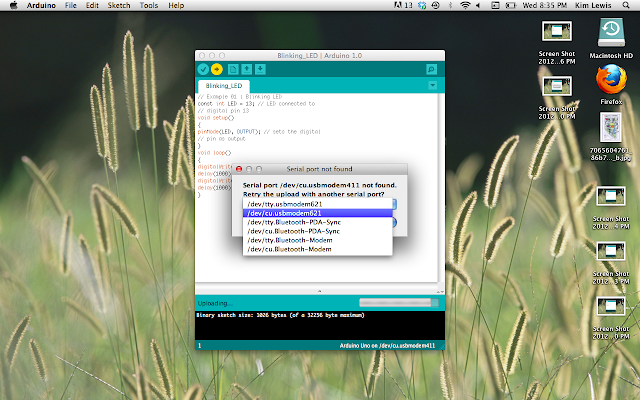
5. Selecting the Serial Port.

6. Attaching the led light.
7. Uploading the code to the Arduino.

8. The blinking LED attached to the Arduino 

9. One step further... The push button.
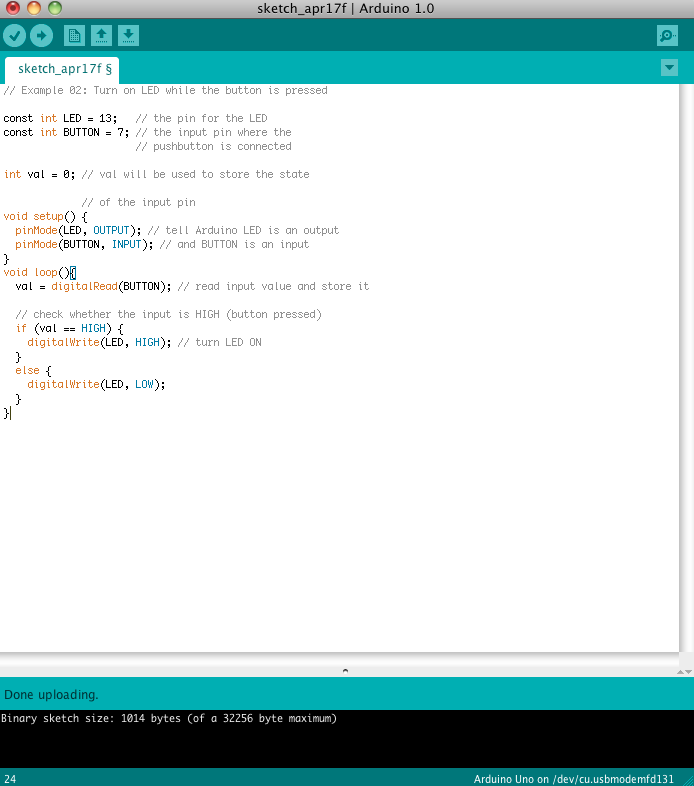
10. Our code for the push button.

10. Our set up with the push button.
Generally setting up the Arduino and executing the blinking code was simple and easy to do. The book was very clear for the instructions regarding how to execute the first exercise. However, when we tried to implement the button, we ran into some difficulties due to some faulty wires. After doing some troubleshooting, we switched out the wires and the button worked perfectly.


Bridget and Shelby vs. the Arduino: Exercises 1 & 2

Hokay so.

In order to learn to become awesome at Arduino building and programming,
our class has been given a few exercises from the second edition of,
"Getting Started with Arduino," by Massimo Banzi.

The first exercise required that we set up the Arduino
(connect it to the computer with the USB and plug an LED into digital
IO pin #13 and the GND pin), and upload a code to make a single LED flash. 

The steps were very well described, making it easy to understand, and fun to watch unfold. 
After these few steps, we had a flashing LED worthy of a miniature dance party...

[Feat. Kanye West "Flashing Lights"]


After seeing results so quickly, we decided (in the true spirit of Bruce Dickinson) 
we needed More Arduino... And went on to exercise two.

This meant we had more connections to make before we could control our 
LED actuator with a pushbutton sensor, instead of just with code.


Connecting the button as the interactive sensor:


 And more connections..


And more connections...


After connecting the resistor and pushbutton to the breadboard
we used jumper wires to run a current from the Arduino,
through the breadboard, and back to give it life!
Then we copied new code into the sketch, verified it, 
and uploaded it to the Arduino via USB.

Now, we are able to control the dance party.

This version of Bridget and Shelby versus the Arduino = Success. 

Wednesday, April 18, 2012

Carly & Robin's LED experience

Definitely a fun process that made blinking LED lights so much cooler when you make them blink yourself.

1. Setting the correct serial port

2. Plugging in arduino to transfer code

3. Making sure arduino is working correctly by checking light labeled L

4. Plugging LED light into arduino 

5. Pasting processing code into window

6. Making sure code is written in correctly 

 7. Transferring processing code to arduino

 8. Yahoo the LED is blinking!

Sheema & Claire: LED & Push Button Exercises

Breakdown of Exercise 1 and 2 for Arduino.

Exercise 1:

1. Plug Arduino into Computer


2. Open Arduino Software
3. Copy and paste Exercise 1 into new sketch window
4. Verify the code


5. Put LED into slots GND and 13


6. LED blinks


Exercise 2:

1. Assemble materials: breadboard, 3 jumper wires, 10K Ohm resistor, momentary tactile pushbutton switch


2. Connect wires from Arduino to breadboard.


3. Copy and paste Exercise 1 into new sketch window
4. Verify the code 


5. Press button and watch LED turn on


First two exercises complete!

Miles & Kim: Blinking LED Exercise One

Below is a walkthrough of our process of completing Exercise One with the Arduino

1.) Plug the USB cable into the computer and the Arduino Uno


2.) Open the Arduino software from Arduino.cc

3.) Paste the code for a sketch into the display window

4.) Verify the code


5.) Place the LED into pins GND and 13


6.) Upload the sketch to the Arduino


7.) Select the correct serial port


8.) Enjoy your blinking LED

(The LED is blinking, however it is very faint and the camera had a difficult time capturing the light)


Tuesday, April 17, 2012

Erin + Charissa: Trial 1 with Arduino

This is our first trial with the LED lights and Arduino processing tools. We were able to complete the first exercise, so we moved onto the second!


STARTING POINT


SWITCH IN PLACE


PIECES IN PLACE


PLUGGING INTO COMPUTER (pt. 1)
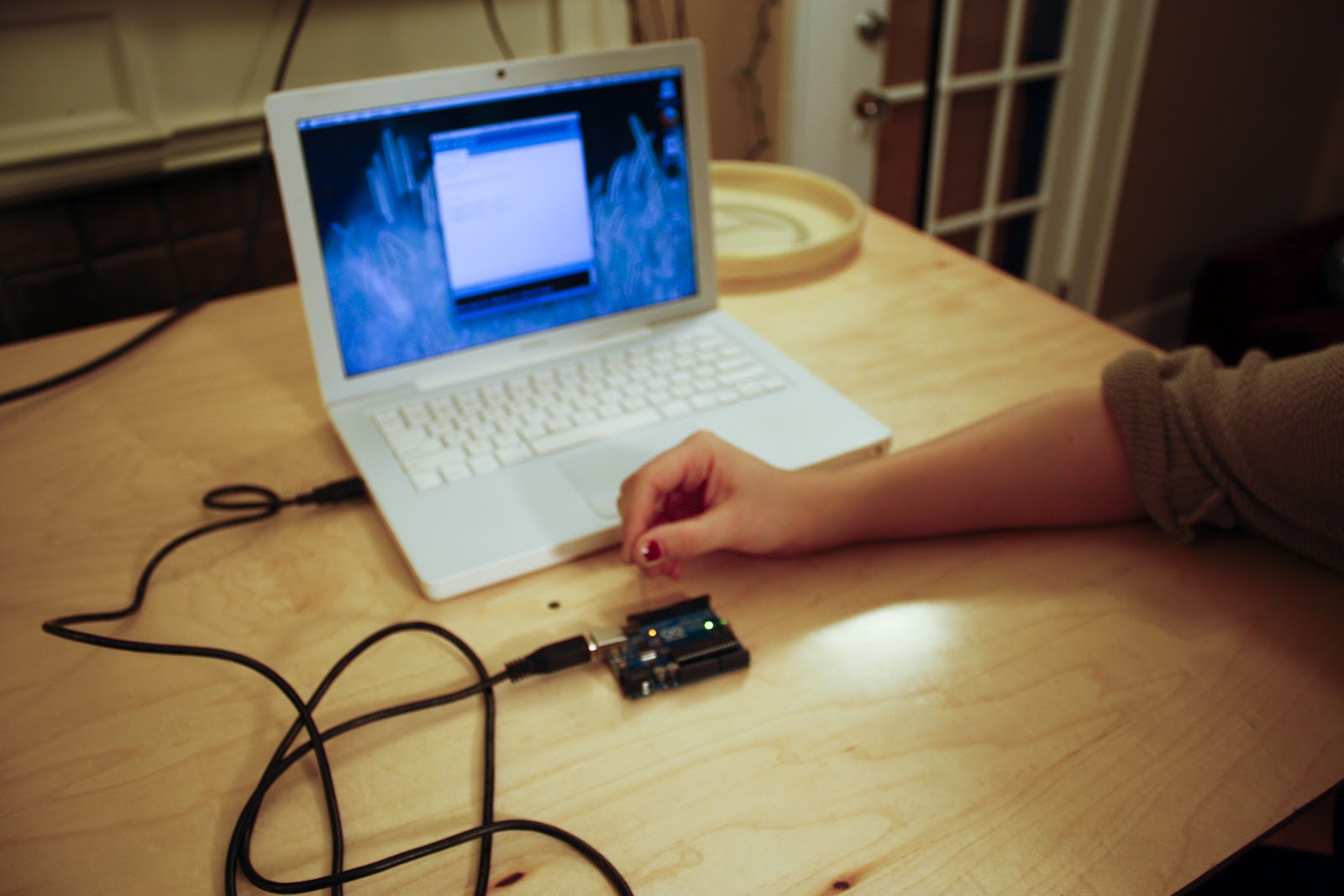

PLUGGING INTO COMPUTER (pt. 2)


PROCESSING + ARDUINO CODES


VERIFYING THE CODE


TESTING THE SWITCH.

WE HAVE LIGHT!